Sage X3 V12 tips: how to quickly find a SQL field
Even with strong SQL skills, locating a field in an X3 database can be a tedious task. Whether you’re writing a query or integrating the field into another system, it can easily take 30 minutes to an hour. ⏳
But what if you’re looking in the wrong place? ❓
The good news? There’s a faster, smarter way 🚀 to find the field you need—without wasting time and without even writing an SQL query! ⏭️💡
How do you do it? 🤔
Let me share my method for quickly finding an SQL field by its name—no guesswork, no wasted time!
1. The goal: retrieving the field
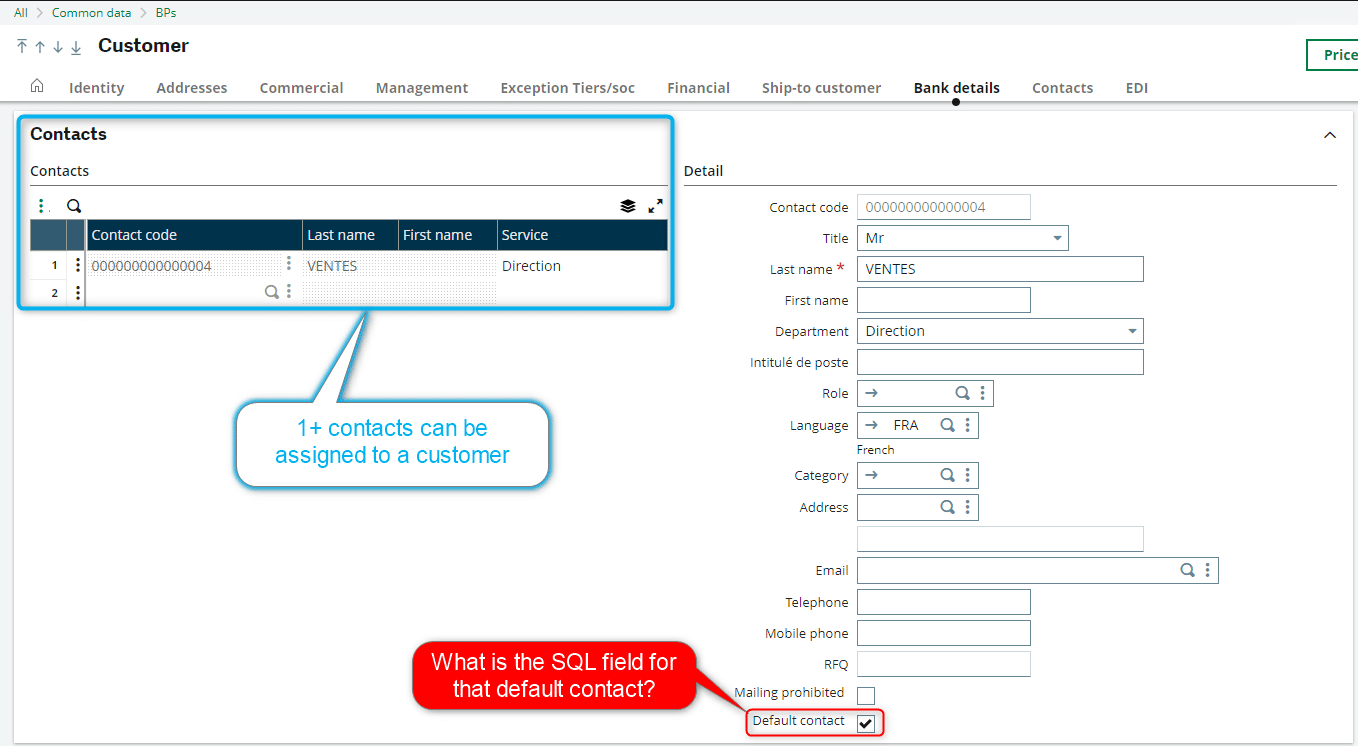
I’m offering you a tutorial using a customer record as an example. In this record, you can add multiple contacts for the same customer. However, only one of them can be set as the default contact.
So, when I check the “default contact” field, I need to determine which contact will be assigned this value.
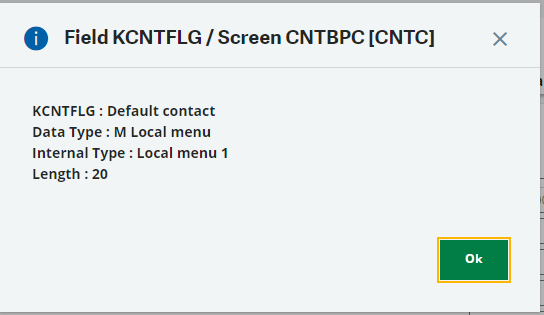
By pressing Esc + F6, I can retrieve the details of the corresponding field. In this case: KCNTFLG.
2. The Blocker: the Field Doesn't Exist
a.Ses origines
I successfully retrieved the field corresponding to my “default contact” checkbox. However, as shown in the image below, this field (KCNTFLG) is nowhere to be found—neither in the CONTACT table nor in the CONTACTCRM table.
Searching for the field using the RECHAMZ screen returns no tables linked to KCNTFLG.
At this point, I could have chosen to dig through the SQL tables manually—but that would have taken a lot of time to find the information.
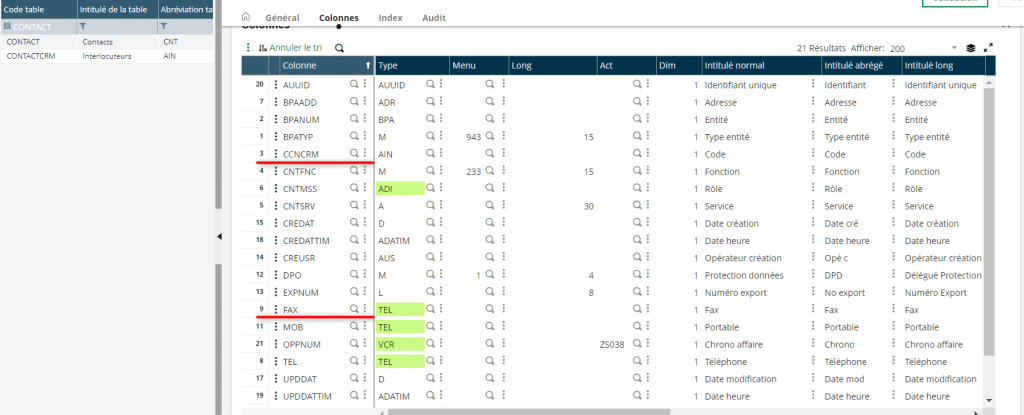
At this point, I could have decided to search through the SQL tables. However, that would have taken a lot of time to find this information.
3. The solution: the database mass update
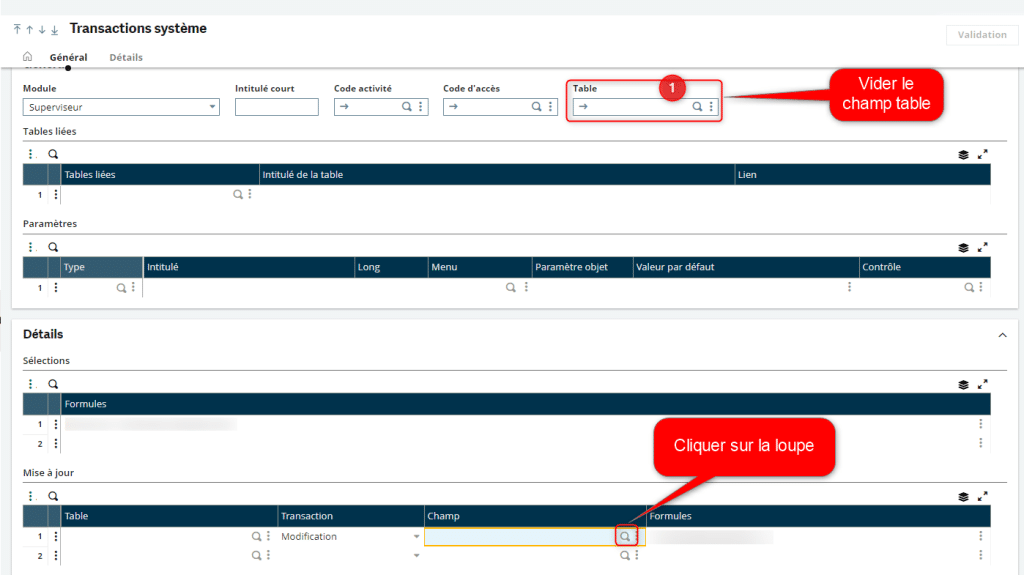
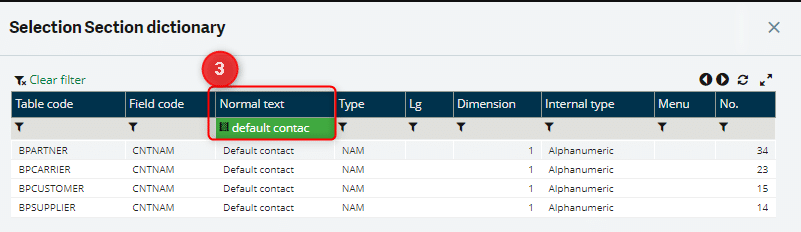
Indeed, there is a much simpler solution! You can locate an SQL field using its designation by querying the system transactions database.
Here’s how to do it:
- Open the system transactions.
- Clear the table to search across the entire database.
- Click on the magnifying glass in the bottom right corner.
- In “default contact”, enter the field description as a keyword. In this case: KCNTFLG.
If I search for KCNTFLG in the “field code” column, it appears that this field doesn’t exist.
And for good reason—it doesn’t belong to any of my CRM contact tables!
4.The reason: SQL architecture
The confusion comes from the architecture of the screen in Sage X3. The user interface differs from the SQL database and the way it stores information.
In Sage X3, data for customers, suppliers, and other third parties is stored in specific tables. However, for the “default contact” field, there is no checkbox in the contact table.
This is because, in the database, what gets stored in the tables is the default contact’s code within the customer and supplier tables.

Conclusion
Querying the SQL database to find a field based on its designation only allows you to search for a field using its code, typically by checking INFORMATION_SCHEMA.COLUMNS. But when the field code is unknown, there’s a faster way.
The most efficient method is to consult the system transactions database, as the tables visible in the user interface differ from Sage X3’s actual data tables.
For more details, check out my video on how to find an SQL field by its designation in Sage X3 V12.
Looking for a professional? Let’s collaborate to ensure the success of your projects throughout their entire lifecycle.
Want to take it a step further? Boost your company’s performance today by checking out our article on Managing Internal Procedures: Best Practices.
Stay tuned for more articles coming soon!
Maud Cappelle